18 Sept., 2010Rv
07 Sept., 2010 Rv
29 April 2009 Rv
24 Sept., 2008 Rv
24 July, 2004 Rv
F.Shinohara
UNESCO
Basics
on the Creation of Homepage/Webpage by MS-Word
For the presentation file, see another.
In addition, the brief introduction and tips to homepage/webpage creation in
Japanese is shown by clicking here, while some
further but older version of readings and sample homepage in English and
Japanese are here.
The objectives of the creation of Homepage
(1) To foster your identity by yourself
(2) To give information to others in the world
(3) To receive information from others in the world
(4) To familiar with an idea of ‘System’ and ‘systematic way of thinking’ and
(5) To tap and bridge the beginning or introductory stage of programming through the modification of source codes to find the changes of colors, positions etc.
Note;
(1) Software ‘Internet Explore’ (IE) =>Browser for the Homepage
MS-Word => Editor for the Homepage
Ex. document file…….index.doc
Be sure that whenever you develop/edit the document file save it as document file, and at the same time you have to save it as a Web Page or a htm(l) file without any changes of that document file.
htm file or html file ………….index.htm or index.html
(2) In any Webpages, they contain only three links or additional information
(a) link to another line in the same Webpage
(b) link to another file in the same area/HD of the server
(c) link to another file in another server or link to another computer
(3) The file name of the Top page/first page should be index.htm or index.html
(4) The linked files should be created/existing before you make link to them
(5) The number of characters of the file name should be less than 8.
Procedure;
(1) Educational aspects
To achieve the objective of the creation of Homepage,
a. Consider the contents
Try to make effective or unique self-introduction by yourself to appeal to others with your features, which will differentiate you with others;
Namely,
Ask to yourself: Who am I? -à for promoting your IDENTITY in the global age
Hence may include your Personal history, expertise, family, relatives, hobbies, my concerns, information needed, related links, etc., all of these will become headwords or entry-words of your top-page.
Be sure not to much personalized and/or privatized contents in order to avoid privacy issues, sexual harassment and copyright issues, etc.
In the same way, if you ask students divided into several groups to work in team-base to consider and create School webpages, then you may ask them What are the features of your school? for example.
b. Consider the design and structure of your webpages on their wooden desk;
Attractive Top page with your identity => logo +….
c. Develop your Logo to make it as it is. => Ref. (2) c below.
(2) Technical procedure
A: First you develop your Homepage on the hard disk of your computer
a. Create a new folder named ‘homepage.’
b. Inside the ‘homepage’, create a new folder named ‘image.’
c. Inside the folder ‘img,’ create your own Logo in gif or jpg format in size of 1.5 cm x 15 cm with the use of software ‘Paintbrush’ and its kind.
d. Create index.doc by MS-Word in the folder ‘homepage’ and insert the logo onto the file.
e. Write the content using headwords for example.
f. Save it as document file and immediately after you save it save as web page format
g. Create links, while before hand you have to create several files to be linked
² => Create ‘bookmark’ first (‘insert’->’bookmark’) and link to it
‘insert’->’hyperlink’
² => ‘insert’->’hyperlink’
² => ‘insert’->’hyperlink’
h. Save it as document file and immediately after you save it ‘save as web Page’ format.
i. Check the Webpage with IE, and improve it with turning back to (e).
B: After you complete or confirm your Webpage work well, you will be ready to upload them developed or revised on the server computer, which you may get permissions to open your Webpage (FYI, see (5) below).
For you further information:
(1) Utilize the image such as pictures, movies and/or sound, all of which are strongly recommended to be taken by yourself due to copyright issues, followed by editing with appropriate software such as Paintbrush, software packaged with hardware, ‘Sound recorder’ under the ‘Accessory’ in the ‘System tools’ on Windows.
(2) It is also recommended to explore the Internet and/or CD-ROMs in the market to find existing appropriate templates as well as images, some of which are clearly described as copy-free.
a. Search engines like ‘google’ and/or ‘goo’ etc. will be useful to find existing copyright-free objects
(3) Try to accumulate several images for your own resources whenever you have time.
(4) Do not make your webpages perfect.
a. ‘under construction’ will be useful.
b. ‘last updated’ will also be necessary.
(5) After completion or revision of your homepage, at any moment if you like, all the files in the folder 'my homepage' should be uploaded onto the server computer with the use of software 'File Transfer Protocol' such as 'ffftp' according to the regulation and/or procedures designed for that server computer for the Internet access from all over the world or from the global community.
Some Tips
(1) From the educational technology point of view, never aim at perfection.
In case strongly recommend you use such buttons as ‘under construction’ or ‘coming soon’ as you like.
(2) Do not develop heavy pages, which contain lots of pictures, colors etc., unless no visitors approaches any more. => Energy free and cost free visitors.
(3) Do not let visitors think why? What? How? => No stress to the visitors.
(4) Utilize resource images from the Web with careful attention to copyright issues.
(5) Use tables to layout or arrange images for example.
(6) ‘Word art’ in the MS-Word will be interesting to develop several types/forms of words and/or sentences.
(7) Others
Appendix
1. Introduction to the Use of Paintbrush
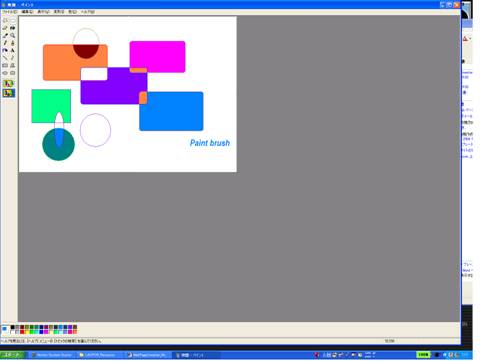
(1) Click each menu on the top raw of the display to see what happen and what you can do.
(2) Click each icon on the left of the display to see what happen and what you can do.
(3) You may calculate length of vertical and horizontal lines, which form the rectangle.
2. Sample Logos